
Not everyone lives in Google Sheets. If Excel is your default spreadsheet tool — or you need to plan a trip without internet access — this itinerary template for Excel is the same proven itinerary structure we offer in Google Sheets, rebuilt as a downloadable .xlsx file that works in Microsoft Excel, LibreOffice Calc, and Apple Numbers.
The template includes built-in formulas for budget tracking, auto-calculated totals, and conditional formatting that highlights items needing attention. Download it once, save it to your computer, and plan your trip entirely offline.
What’s in This Template
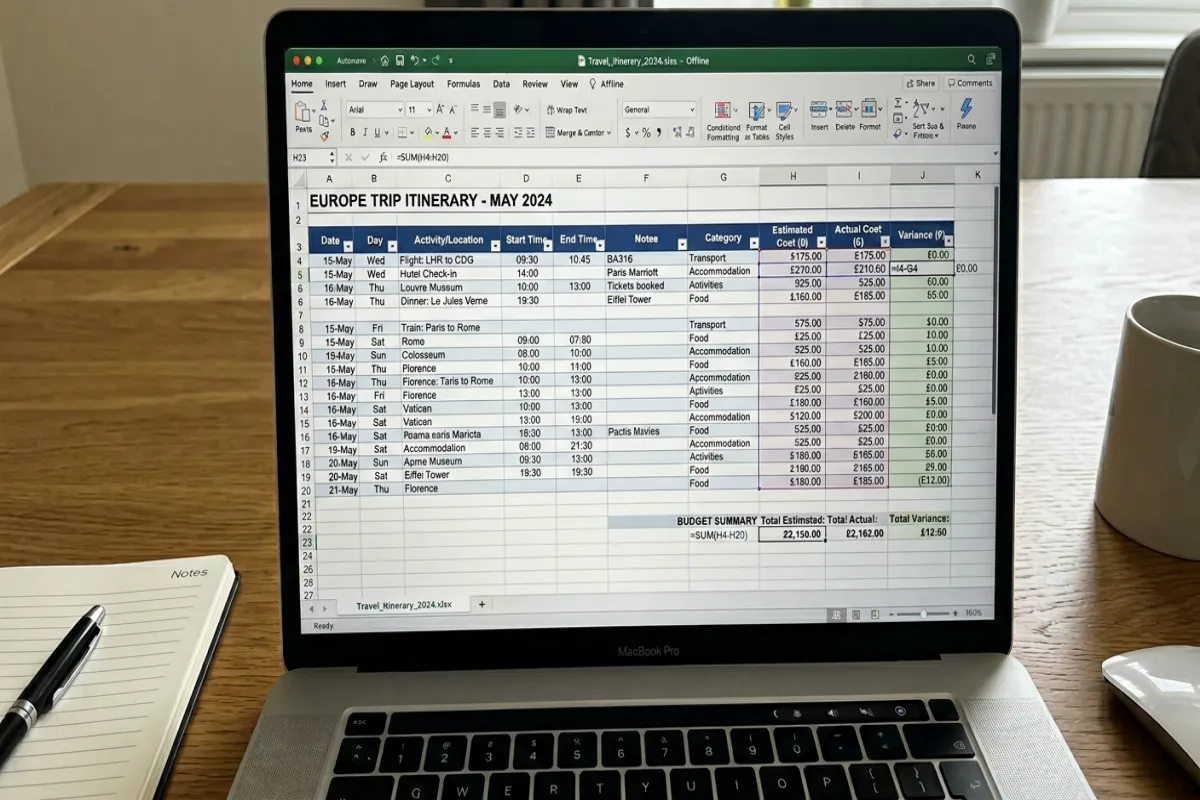
Tab 1: Trip Overview
Your trip at a glance: destination, dates, travelers, accommodation address, and emergency contacts. Below that, a summary dashboard pulling totals from the other tabs — total budget, total spent, number of booked activities, and packing list completion percentage. All formula-driven so it updates as you fill in the rest of the workbook.
Tab 2: Day-by-Day Itinerary
Each day of your trip on its own row group: date, day of the week (auto-calculated from the date), time blocks from morning to evening, activity name, location, address, confirmation number, estimated cost, and notes. The cost column feeds into the Budget tab automatically. Expandable row groups let you collapse completed days and focus on what’s coming next.
Tab 3: Flights & Transportation
Every travel leg: airline or provider, booking reference, route, departure and arrival dates and times, terminal, seat, baggage allowance, and cost. Covers flights, trains, buses, rental cars, and airport transfers. A “status” column with dropdown options: booked, confirmed, checked in, completed. Subtotal formula at the bottom.
Tab 4: Accommodation
All your lodging: property name, type (hotel, Airbnb, hostel), address, check-in and check-out dates, nights (auto-calculated), nightly rate, total cost (formula: nights × rate), confirmation number, cancellation deadline, and notes. Color-coded rows highlight cancellation deadlines approaching within 7 days.
Tab 5: Budget Tracker
Two sections: planned budget (set before the trip) and actual spending (logged during the trip). Categories: flights, accommodation, food, activities, transportation, shopping, insurance, and miscellaneous. Each category shows budgeted amount, actual amount, and variance (formula: actual minus budgeted). Negative variance shows in red. A summary row shows your total trip cost and remaining budget.
Tab 6: Packing List
Categorized packing checklist: documents, electronics, clothing, toiletries, medications, and trip-specific items. Checkbox column for packed status. A formula at the top calculates your packing completion percentage. Filter by “not packed” to see what’s left.
How to Use It
- Download and save locally. The .xlsx file works in Excel 2016 or later, LibreOffice Calc, and Apple Numbers. Save it to your Documents folder or Desktop — not a cloud folder if you want true offline access.
- Start with the Trip Overview tab. Fill in your destination and dates. The dashboard fields will show zeros until you populate the other tabs, which is normal.
- Fill in tabs in order. Flights and Accommodation first (since those are usually booked first), then Day-by-Day Itinerary, then Budget, then Packing List.
- Let the formulas work. Don’t manually type totals — the budget tracker, accommodation costs, and packing percentages are all formula-driven. If you add rows, make sure to extend the formula ranges.
- Print or export as PDF before your trip. Use the Yopki Travel Document Organizer to combine your itinerary PDF with booking confirmations into one travel document packet.
Plan Your Trip Today!
Get a complete, personalized trip template in seconds.
For more details, see our complete trip planning guide.
Take full control to customize every detail. Or, skip the template and build your itinerary with AI
Plan My TripWhy Use Excel Instead of Google Sheets?
Offline access. Google Sheets requires internet (or pre-downloading for offline mode, which is flaky). An Excel file on your laptop works anywhere — planes, remote cabins, countries with unreliable Wi-Fi.
Company compatibility. Many workplaces block Google Workspace. If you’re combining personal and business travel, or your company standardizes on Microsoft Office, an Excel file integrates without friction.
Advanced formatting. Excel’s conditional formatting, data validation dropdowns, and pivot table capabilities are more robust than Google Sheets. The template uses these features for status dropdowns, deadline highlighting, and budget variance coloring.
Privacy. An Excel file on your computer isn’t stored in anyone’s cloud. If you’re planning a trip with sensitive details (corporate travel, surprise trip), a local file gives you full control.
All Format Options
- This Excel Version — downloadable .xlsx with formulas and formatting. Best for offline use and Microsoft Office users.
- Google Sheets Version — cloud-based with real-time collaboration. Best for group trip planning and travelers who live in Google Workspace.
- Google Docs Version — document format for a clean, printable itinerary. Best for travelers who prefer documents over spreadsheets.
- Word Version — downloadable .docx for customizable, formatted documents. Best for travelers who want a polished printable.
- See All Templates — browse every itinerary format and trip type we offer.
FAQ
How do I make a travel itinerary in Excel?
Start with a workbook that has separate tabs for your trip overview, daily schedule, flights, accommodation, budget, and packing list. In each tab, create a table with columns for the relevant details (dates, times, costs, confirmation numbers). Use formulas to auto-calculate budget totals and trip duration. Add conditional formatting to highlight items needing attention. Or skip the setup and download this template — it has all of that built in and ready to fill.
Which version of Excel do I need?
The template works with Excel 2016 and later, including Microsoft 365. It also opens in LibreOffice Calc (free) and Apple Numbers, though some conditional formatting may render differently in Numbers. If you’re using an older Excel version, the formulas will still work — some formatting features may not display identically.
Can I share this file with others?
Yes. Email the .xlsx file to travel companions, share it through OneDrive or Dropbox, or use Excel’s built-in co-authoring feature (requires OneDrive or SharePoint). For real-time collaboration, the Google Sheets version is more seamless.
What if I need to add more days or rows?
Insert rows within the existing table ranges so formulas auto-expand. If you insert rows outside the formula ranges, you’ll need to manually extend the SUM and other formulas to include the new rows. The template includes enough rows for a 14-day trip by default.