
Google Docs is great for a narrative-style itinerary. But if you want sortable columns, automatic budget math, and the ability to filter your entire trip by date, category, or cost — you want a spreadsheet. You can also browse all itinerary templates to find the right format
This free travel itinerary template for Google Sheets combines your day-by-day plan with a working budget tracker. Every dollar you log gets tallied automatically. Every flight, hotel, and activity sits in a sortable, filterable table. Copy it to your Drive and start planning. Or, skip the template and build your itinerary with AI
What’s in This Template
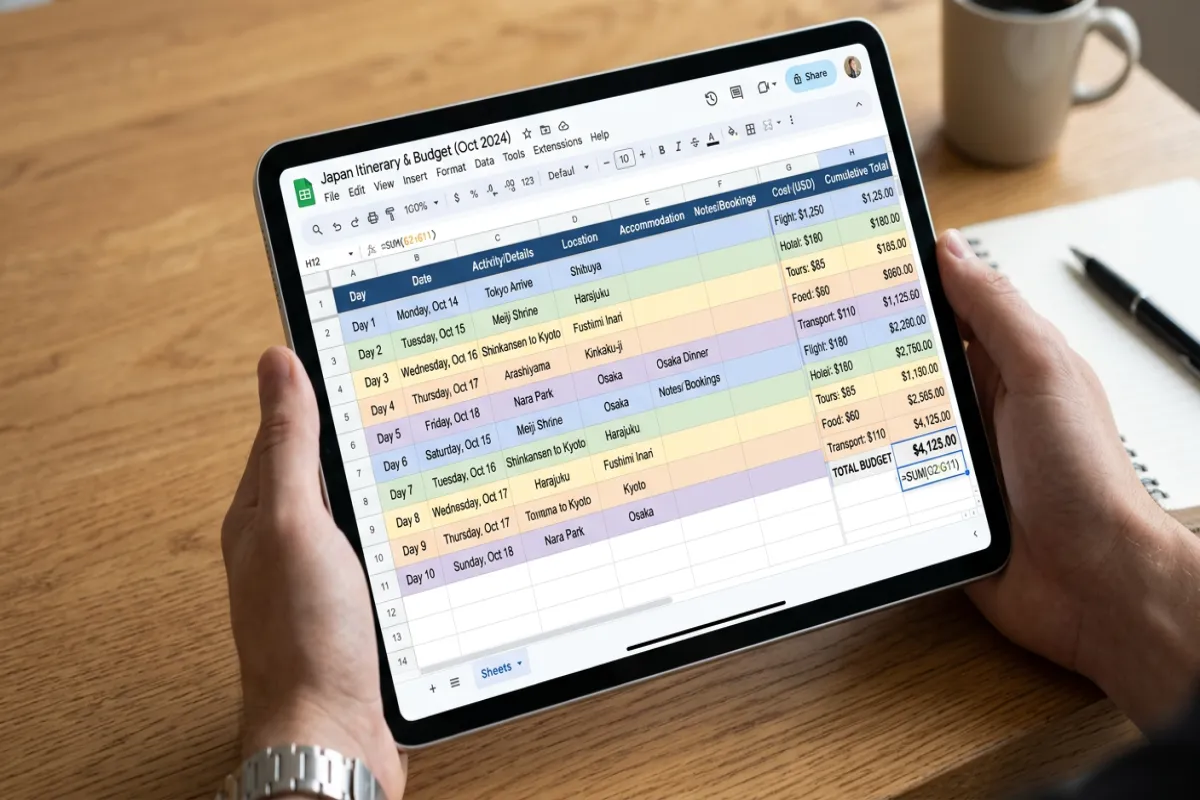
The spreadsheet has four tabs designed to work together:
Tab 1: Day-by-Day Itinerary
Your complete trip timeline in a single sortable table. Each row is one activity or event with these columns: date, time, activity name, category (flight, hotel, food, activity, transport), location, address, confirmation number, estimated cost, actual cost, payment method, and notes.
The category column uses a dropdown menu so entries are consistent and filterable. Want to see only your restaurant reservations? Filter by “Food.” Need all your confirmation numbers? Sort by category and they’re grouped together.
Conditional formatting highlights today’s date row in blue, so during your trip you can instantly see where you are in the schedule.
Tab 2: Budget Dashboard
Set your total trip budget at the top. The dashboard pulls data from the itinerary tab automatically and shows you spending by category with both estimated and actual amounts. A progress bar shows what percentage of your budget you’ve used, and a “remaining” figure updates in real time as you log expenses.
The breakdown includes: flights, accommodation, food and dining, activities and tours, local transportation, shopping, and a miscellaneous category for the unexpected (like that $40 taxi when you got lost).
Tab 3: Flight & Transport Log
A dedicated table for every leg of transportation: airline/operator, flight or booking number, departure point, arrival point, departure time, arrival time, terminal, gate, seat, confirmation code, and cost. Works for flights, trains, buses, ferries, and rental cars.
This tab cross-references with the itinerary tab so your transport entries appear in both places without double-entry.
Tab 4: Accommodation
Every place you’re staying gets a row: property name, type (hotel, Airbnb, hostel), address, check-in date and time, check-out date and time, confirmation number, nightly rate, total cost, Wi-Fi info, and notes. Total accommodation cost calculates automatically based on nightly rates and number of nights.
Plan Your Trip Today!
Get a complete, personalized trip template in seconds.
For more details, see our complete trip planning guide.
Take full control to customize every detail.
Plan My TripHow to Use It
- Copy the template. Open the link below, then go to File → Make a copy to save it to your Google Drive.
- Set your budget. In the Budget Dashboard tab, enter your total trip budget in the highlighted cell at the top. Everything else calculates from this number.
- Enter your fixed bookings first. Flights, hotels, and pre-booked tours go in first because they have set dates and costs. Fill in the Flight & Transport Log and Accommodation tabs, and these entries auto-populate in the main itinerary.
- Build out each day. In the Day-by-Day Itinerary tab, add activities, meals, and free time for each day. Use the category dropdown to keep entries consistent.
- Share with your group. Click Share and add travel companions. Multiple people can edit simultaneously — one person adds restaurants while another researches activities.
- Track spending during your trip. As you spend, fill in the “Actual Cost” column. The Budget Dashboard updates in real time so you always know where you stand financially.
Spreadsheet vs. Google Docs: Which Should You Use?
Choose Google Sheets if you care about budget tracking, want sortable and filterable data, are planning a complex multi-destination trip, or are traveling with a group that needs to split costs.
Choose Google Docs if you prefer a narrative layout that reads like a document, want to include photos and maps inline, or are planning a simpler trip where budget tracking isn’t a priority. We have a Google Docs version of this template if that sounds better.
Use both if you want the best of each. Plan and track in the spreadsheet, then copy the finalized itinerary into a Google Doc for a cleaner printable version. Or skip that step and use the Yopki Travel Document Organizer to merge your exported PDF with all your booking confirmations.
Power User Tips
Create a currency conversion column. If you’re traveling internationally, add a column with the formula =cost_in_local * exchange_rate. Name a cell “exchange_rate” and update it once — every converted amount updates automatically.
Use data validation for consistent entries. The template uses dropdown menus for categories, but you can add your own. Go to Data → Data validation to create custom dropdowns for payment methods, trip companions, or priority levels.
Set up conditional formatting alerts. Want a warning when a single day’s spending exceeds $200? Select the daily cost column, go to Format → Conditional formatting, and set a rule to highlight cells above your threshold in red.
Enable offline mode before traveling. Go to Google Drive Settings → Offline and toggle it on. Your spreadsheet will be accessible without Wi-Fi — essential for logging expenses on the go.
Freeze the header row. The template already does this, but if you add rows and it breaks: go to View → Freeze → 1 row. This keeps your column headers visible as you scroll through a long itinerary.
When Your Trip Is Planned
Once your itinerary is locked in, export the key information for offline access. Go to File → Download → PDF to create a printable version of any tab. For a complete travel packet that combines your itinerary with booking confirmations, insurance docs, and passport copies, use the Yopki Travel Document Organizer.
For a more comprehensive spreadsheet with six tabs covering packing lists and pre-trip checklists, check out our Trip Planning Spreadsheet.
FAQ
Can I download this as an Excel file?
Yes. Once you’ve copied the template to your Drive, go to File → Download → Microsoft Excel (.xlsx). All formulas, conditional formatting, and dropdown menus transfer to Excel. You’ll lose real-time collaboration and offline sync, but the spreadsheet works identically.
Does the budget tracker work with multiple currencies?
The template uses a single currency by default. To track multiple currencies, add a “Currency” column and an “Exchange Rate” column, then create a formula that converts everything to your home currency. This takes about five minutes to set up and makes international trip budgeting much clearer.
Can multiple people edit at the same time?
Yes. Google Sheets supports real-time collaboration. Share the spreadsheet with your travel group and everyone can edit simultaneously. You’ll see each person’s cursor and changes appear instantly. This makes it easy to divide planning tasks — one person handles flights while another researches restaurants.