Some travelers want a clean, formatted document they can print, hand to a travel companion, or email to family — not a spreadsheet, not a Google Doc, just a Word file — a classic itinerary format template — they can open, customize, and make their own. Or, skip the template and build your itinerary with AI
This free travel itinerary template is a downloadable .docx file built in Microsoft Word. It has a professional layout with tables, headers, and formatting already done. Fill in your trip details, adjust the styling to your taste, print it out, and go.
What’s in This Template
Trip Summary Page
A one-page overview: destination, travel dates, travelers’ names, accommodation name and address, emergency contact numbers, and your travel insurance policy number. Designed to be the first page of your printed travel packet — everything someone needs to know about your trip on one sheet.
Flight & Transportation Details
Formatted table for all travel legs: airline, flight number, departure city and time, arrival city and time, terminal, seat assignment, confirmation number, and baggage information. Separate rows for outbound, connecting, and return flights. Additional rows for ground transportation: rental car, airport transfers, and train or bus connections.
Accommodation Details
Table with your lodging information: hotel or rental name, full address, phone number, check-in and check-out dates and times, confirmation number, nightly rate, cancellation policy date, and notes (parking instructions, Wi-Fi password, late checkout request). One row per property for multi-stop trips.
Day-by-Day Itinerary
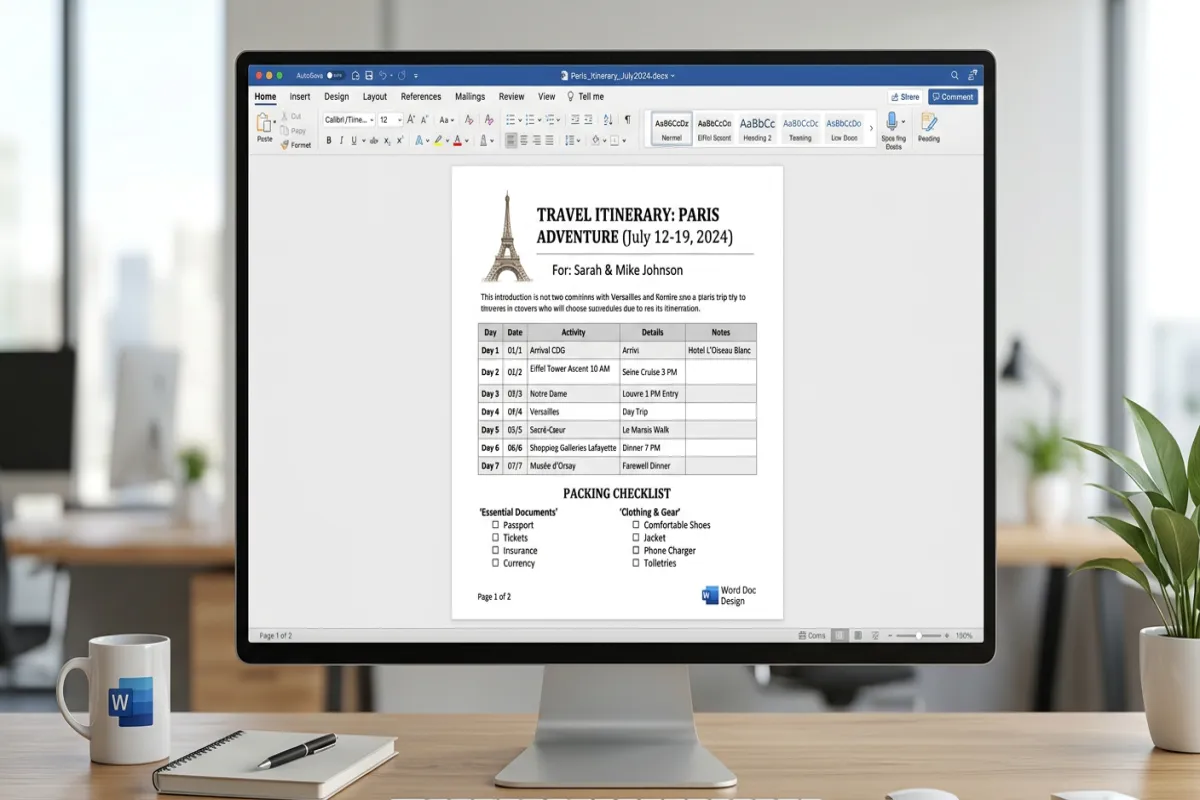
The core of the document. Each day gets its own section with a date header, then a table broken into time blocks: morning, midday, afternoon, and evening. Each block has fields for activity, location, address, time, confirmation or ticket info, estimated cost, and notes. The layout is clean enough to read at a glance but detailed enough that you won’t forget a reservation.
Restaurant & Dining Notes
A table of your planned dining spots: restaurant name, cuisine type, meal (breakfast, lunch, dinner), reservation status, address, price range, and what they’re known for. Organized by day so you can see your food plan alongside your activities.
Packing Checklist
Categorized list: travel documents, electronics and chargers, clothing, toiletries, medication, and trip-specific items. Checkbox formatting for printing — check items off with a pen as you pack. The list is editable so you can add or remove items based on your trip type.
Important Contacts & Notes
Emergency numbers, embassy or consulate info (for international trips), travel insurance claims number, airline customer service, and a space for any other notes — allergies for restaurant staff, phrases in the local language, or reminders like “buy power adapter before departure.”
Plan Your Trip Today!
Get a complete, personalized trip template in seconds.
For more details, see our complete trip planning guide.
Take full control to customize every detail.
Plan My TripHow to Use It
- Download and open in Word. The .docx file works in Microsoft Word 2016+, Word for Mac, Word Online, LibreOffice Writer, and Google Docs (import as .docx). Save a copy before you start editing so you always have the blank template.
- Customize the formatting. Change fonts, colors, or add your own header image. Word’s formatting tools let you make this template match your personal style. Some travelers add a trip logo or destination photo to the cover page.
- Fill in sections as you book. Start with flights and accommodation (once booked), then fill in the day-by-day schedule as you research activities. The Dining section can be filled in last — or left partially open for spontaneous meals.
- Print double-sided. The template is designed to print cleanly. Double-sided printing keeps the packet compact. Consider printing extra copies — one for your bag, one for your hotel room, one for a travel companion.
- Create a PDF version too. File → Save As → PDF gives you a version that looks identical on any device. Use the Yopki Travel Document Organizer to merge your itinerary PDF with booking confirmation PDFs into one complete travel document.
Why Choose Word Format?
Full formatting control. Word gives you more design flexibility than Google Docs — custom fonts, precise table sizing, headers and footers, page borders, and section breaks. If you want your itinerary to look polished and professional, Word is the tool.
Print-first design. This template is optimized for printing. Margins, font sizes, and table widths are set for standard letter paper. Google Docs and Sheets print acceptably; Word prints beautifully.
Universal compatibility. Everyone can open a .docx file — on Windows, Mac, phone, or web browser. No Google account required. You can email it to anyone and they can read it.
Offline by default. The file lives on your computer. No internet needed to edit or view it. For trips to areas with limited connectivity, a local file is more reliable than any cloud-based tool.
All Format Options
- This Word Version — downloadable .docx with professional formatting. Best for printing and customization.
- Google Docs Version — cloud-based document with real-time sharing. Best for collaborative planning.
- Google Sheets Version — spreadsheet with automatic budget calculations. Best for data-oriented planners.
- Excel Version — downloadable spreadsheet with formulas. Best for offline spreadsheet users.
- See All Templates — browse every format and trip type.
FAQ
How do I create a travel itinerary in Word?
Open a new document and create sections for trip details, flights, accommodation, and a day-by-day schedule. Use Word’s table feature to organize time blocks, activities, and confirmation numbers. Add headers for each day, format with consistent fonts and colors, and include a packing checklist with checkbox formatting. Or download this template which has professional formatting, tables, and sections already built — just fill in your trip details.
Can I open this in Google Docs?
Yes. Upload the .docx file to Google Drive and open it with Google Docs. Most formatting will transfer correctly, though some table borders and fonts may shift slightly. For the best Google Docs experience, use our native Google Docs version instead.
Is this template printer-friendly?
Yes, it’s designed for printing. Margins are set to standard letter size (8.5″ × 11″), fonts are sized for readability, and tables fit within print margins. For best results, use Print Preview to check page breaks before printing, and adjust any sections that split awkwardly across pages.
Can I add my own sections?
Absolutely. The template is a starting point. Add a section for visa requirements, a currency conversion reference, a section for loyalty program numbers, or anything else your trip needs. Copy the formatting from an existing section to keep the design consistent.