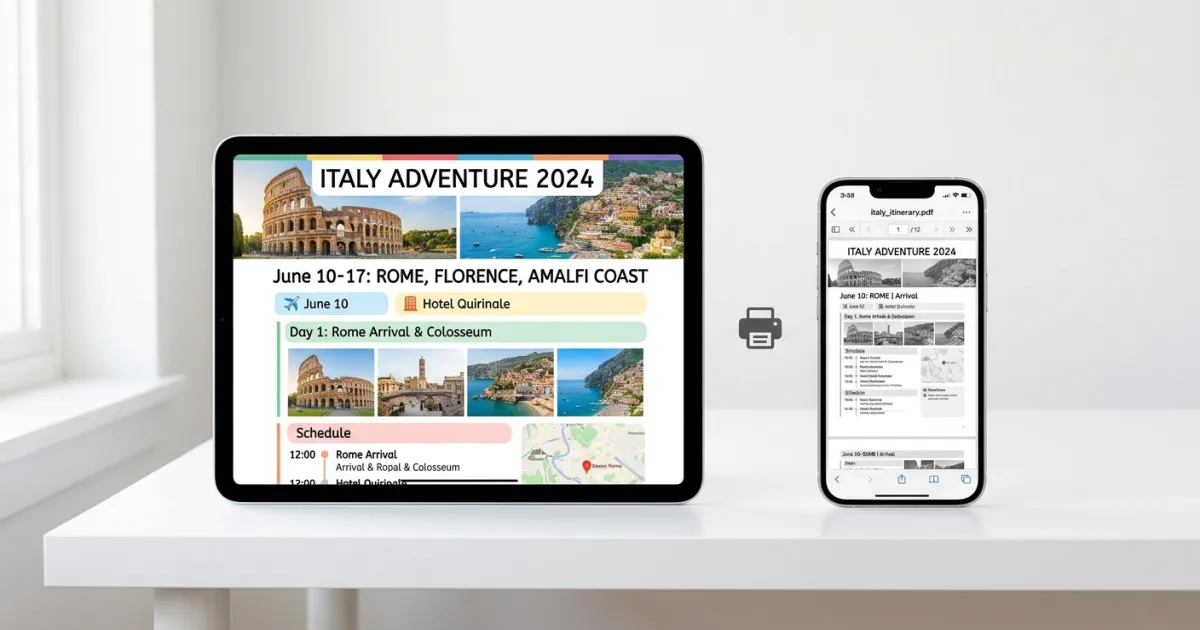
You’ve spent hours building the perfect travel itinerary — perhaps following a trip planning guide to get everything organized. Flights, hotels, restaurant reservations, activity confirmations — all neatly organized. Now you need it as a single PDF you can print, share with travel companions, or access offline at 35,000 feet when there’s no Wi-Fi.
The problem? Most itinerary tools don’t make this easy. Google Docs buries the export option. TripIt locks PDF export behind a paid plan. And copying everything into a Word doc feels like 2005. Fortunately, Yopki’s travel document organizer makes combining everything into one PDF simple.
Here are three free methods that work in 2026, from the quick-and-dirty approach to the one that actually looks professional.
Method 1: Browser Print-to-PDF (Works With Anything)
This is the universal method. If you can see it in a browser, you can save it as a PDF.
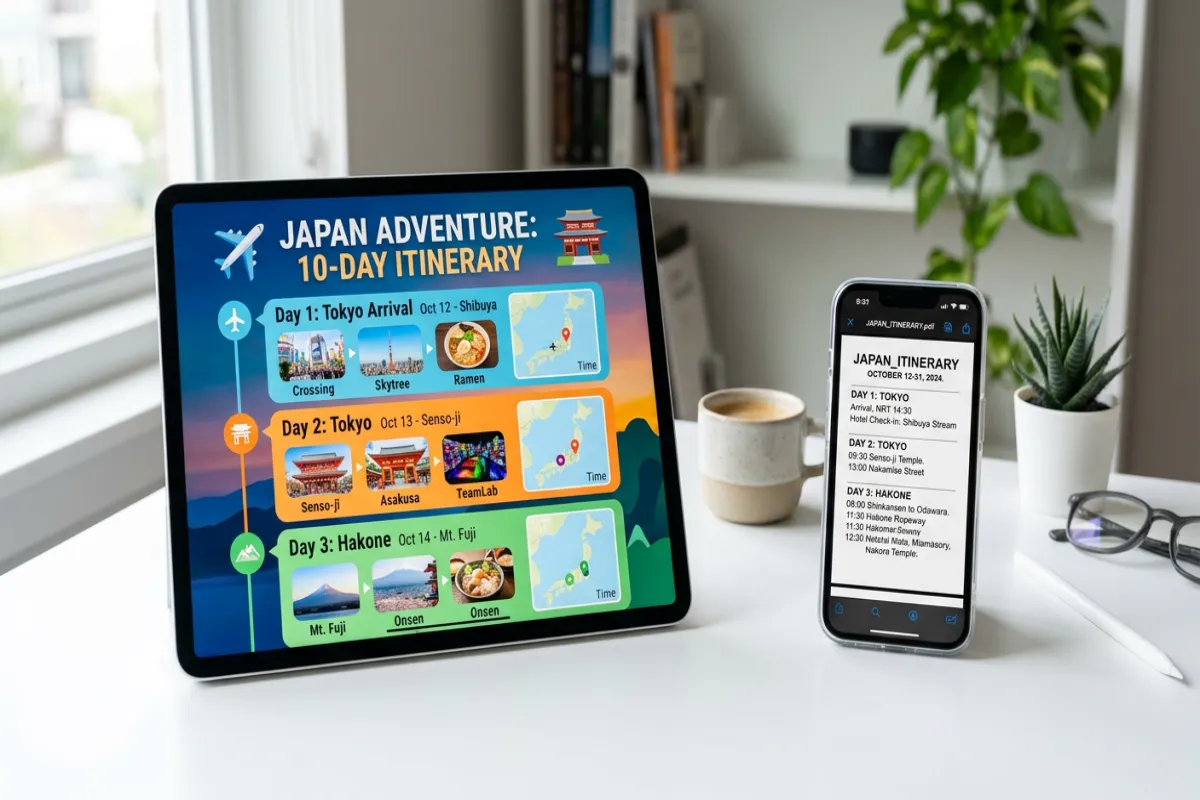
On Desktop (Chrome, Firefox, Edge, Safari)
- Open your itinerary in any browser tab — whether it’s in Google Docs, a booking confirmation email, or a travel planning app.
- Press Ctrl + P (Windows/Linux) or Cmd + P (Mac) to open the print dialog.
- Change the Destination to “Save as PDF” (Chrome/Edge) or select “PDF” from the dropdown (Safari/Firefox).
- Adjust the layout to Portrait or Landscape depending on your itinerary format.
- Click Save and choose where to store the file.
Pro tip: Before printing, use your browser’s “Reader Mode” (if available) to strip out ads, navigation bars, and other clutter. This gives you a much cleaner PDF.
On iPhone or iPad
- Open your itinerary in Safari or any browser.
- Tap the Share button (the square with an arrow).
- Scroll down and tap Print.
- On the print preview, pinch outward with two fingers on the preview image. This converts it to a PDF.
- Tap the Share button again and save to Files, email it, or AirDrop it.
On Android
- Open your itinerary in Chrome.
- Tap the three-dot menu (top right) and select Share, then Print.
- Change the printer to “Save as PDF”.
- Tap the download icon to save.
Limitation: Print-to-PDF captures exactly what’s on screen. If your itinerary spans multiple pages or tabs, you’ll get multiple PDFs. This method works best for single-page itineraries.
Method 2: Export From Google Docs (Best for Editable Itineraries)
If you built your itinerary in Google Docs (or used one of the many free Google Docs itinerary templates), exporting as PDF is built in.
- Open your itinerary in Google Docs.
- Go to File → Download → PDF Document (.pdf).
- The PDF downloads to your default downloads folder.
That’s it. Google Docs preserves your formatting, tables, images, and links in the exported PDF. If you have multiple itinerary documents (flights in one doc, hotels in another), you’ll need to either combine them first or merge the PDFs afterward.
The merge problem: This is where most travelers get stuck. You end up with a flight confirmation PDF, a hotel booking PDF, a Google Docs itinerary PDF, and a car rental PDF — and you want them all in one document. That’s exactly what our Travel Document Organizer is designed to handle (more on that in Method 3).
Plan Your Trip Today!
Get a complete, personalized trip template in seconds.
Take full control to customize every detail.
Method 3: Use Yopki’s Free Travel Document Organizer (One PDF, Everything Included)
The first two methods work fine for a single itinerary page. But real travel planning involves dozens of documents: booking confirmations, insurance cards, visa copies, itineraries, maps, and emergency contacts.
The Yopki Travel Document Organizer is a free tool that lets you:
- Upload all your travel documents (PDFs, images, confirmations)
- Arrange them in the order you want
- Merge everything into one clean, printable PDF
- Download or print your complete travel packet
No account required, no file size limits, and it works entirely in your browser — your documents never leave your device.
Best for: Travelers who want a single, organized PDF that contains their entire trip’s documentation. Print it, toss it in your carry-on, and you’re covered even if your phone dies at customs.
Which Method Should You Use?
| Situation | Best Method |
|---|---|
| Quick save of a single web page | Browser Print-to-PDF |
| Itinerary built in Google Docs | Google Docs Export |
| Multiple documents to combine | Yopki Document Organizer |
| Need offline access on your phone | Any method, then save to Files app |
| Sharing with travel group | Google Docs Export or Yopki (then email/AirDrop) |
Tips for Better Itinerary PDFs
Include emergency info on page one. Put your hotel address, embassy phone number, and travel insurance policy number at the very top. If you only glance at one page during your trip, make it this one.
Add page numbers. If you’re printing a 10+ page document, page numbers help you flip to the right day quickly. Google Docs adds them automatically (Insert → Page numbers). The Yopki organizer adds them for you.
Save a copy to your phone’s offline files. A PDF on your phone beats a cloud document when you’re in airplane mode, roaming without data, or standing at immigration without Wi-Fi. On iPhone, save to the Files app. On Android, save to your device storage or Google Drive’s offline folder.
Print a backup copy. Yes, in 2026. Paper doesn’t run out of battery, doesn’t need Wi-Fi, and immigration officers in many countries still prefer physical documents. Start with a printable itinerary template for a print-ready format from the start. A printed itinerary PDF is the most reliable backup you can carry.
FAQ
Can I save a TripIt itinerary as a PDF for free?
TripIt’s built-in PDF export requires TripIt Pro ($49/year). The free workaround: open your TripIt itinerary in a browser and use Method 1 (Print-to-PDF). You’ll get the same content without paying.
How do I save a Google Maps itinerary as a PDF?
Google Maps doesn’t have a native PDF export. Use the browser Print-to-PDF method (Ctrl/Cmd + P → Save as PDF). For a cleaner result, take screenshots of each route segment and combine them using the Travel Document Organizer.
What’s the best file format for a travel itinerary?
PDF is the best format for travel itineraries. It preserves formatting across every device, can be viewed offline, prints cleanly, and is accepted by immigration officials worldwide. Avoid sharing itineraries as .docx or .pages files — not everyone can open them.